Building FauxCam: A Fake Camera for the iOS Simulator
If you have ever built an iOS app that uses the camera, you know this pain. You write the QR scanner, the photo capture, the live preview — and then you open the Simulator to test it. Nothing happens. The Simulator has no camera. So you grab a real device, plug it in, and test by hand. Every single time.
I got tired of this. So I built FauxCam — a tool that gives the iOS Simulator a fake camera. You can feed it a still image, a video file, your Mac's webcam, or a QR code, and the simulated app sees it as a real camera feed.
TL;DR — FauxCam injects a fake front/back camera into apps running in the Simulator. It ships as a macOS menu-bar app and a
fauxcommand-line tool. It is open-source (MIT) and leaves nothing behind on your machine or in the app.
The problem
The iOS Simulator is great for almost everything. But Apple never gave it a camera. Any app that opens an AVCaptureSession gets nothing back.
This is a real wall for many common features:
- Scanning a QR code or barcode
- Taking a photo in your app
- Showing a live camera preview
- Any kind of document or face scanning
You cannot test any of these in the Simulator. You always need a physical device. For a solo developer, or for someone running automated tests on a CI server with no real phone attached, this is slow and annoying.
I wanted a faster loop: change code, run in the Simulator, see the camera work — without borrowing a device.
What FauxCam does
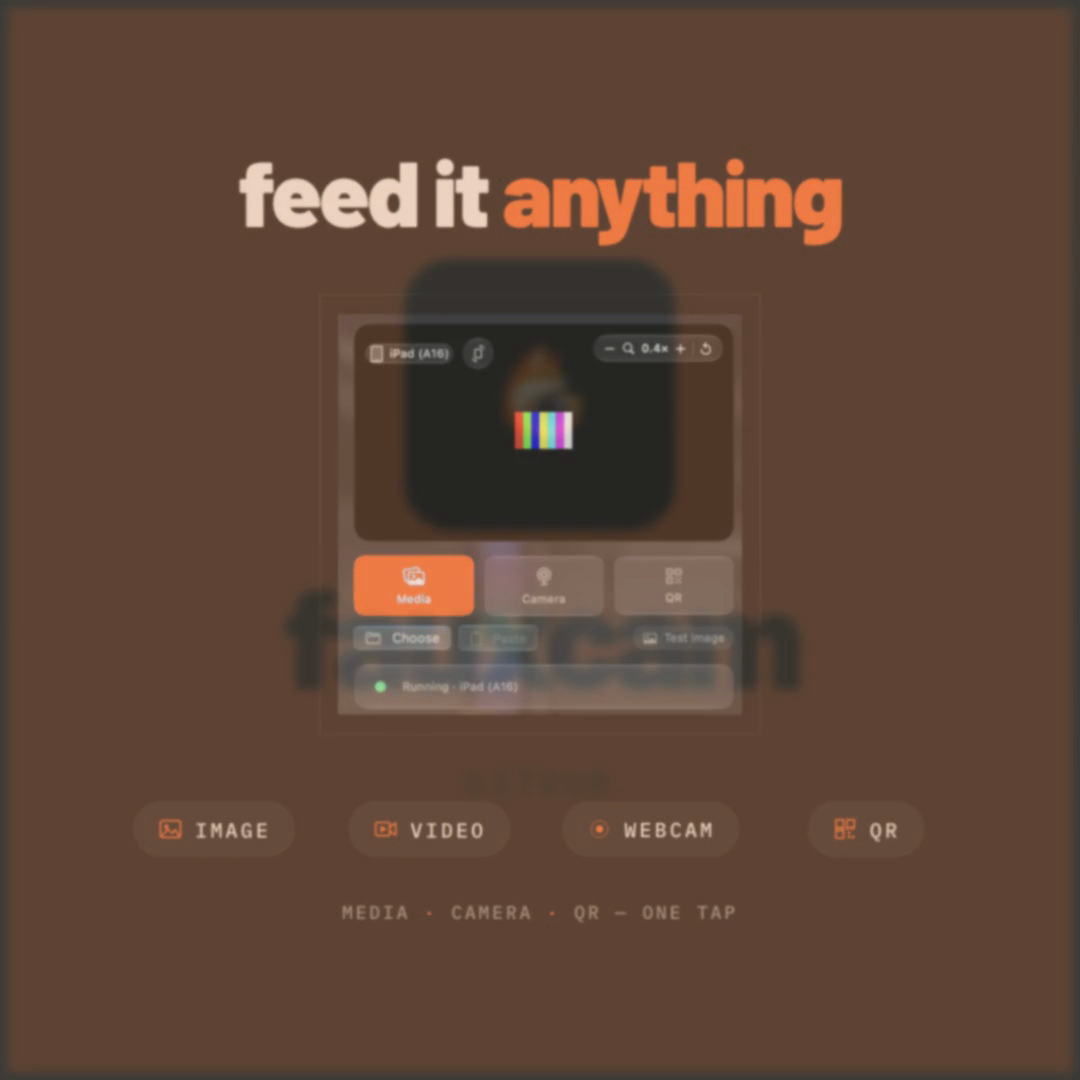
The idea is simple. You pick a source, and FauxCam streams it into the Simulator as if it were a real camera.
There are three kinds of source:
- 🖼️ Media — A still image or a video file, looped. Drop in whatever your flow needs to see.
- 📷 Camera — Your Mac's webcam or Continuity Camera, mirrored live into the simulated app.
- 🔳 QR — Turn any text or URL into a clean, scannable QR code.
You get two ways to use it.
1. The menu-bar app. A small macOS app that lives in your menu bar. Click the icon and a viewfinder panel opens. You see the exact frame each Simulator receives, and you can frame it just right.
The viewfinder is WYSIWYG — what you see is what the Simulator gets. You can:
- Drag to pan
- Scroll or pinch to zoom
- Twist to rotate (it snaps to right angles)
- Flip between portrait and landscape — the source re-renders to fit
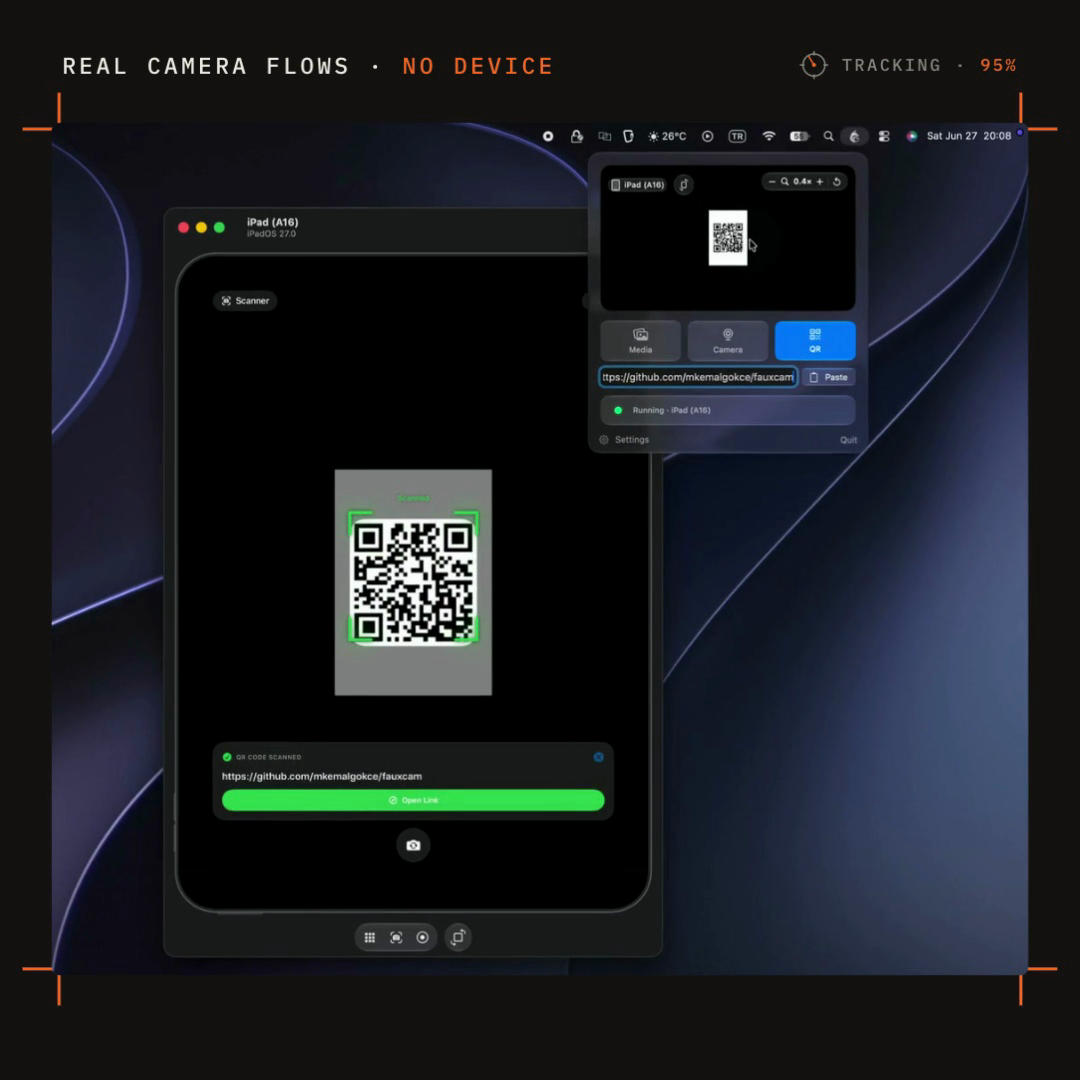
2. The faux CLI. For scripts and CI, there is a command-line tool. One command serves the frames and launches your app with the fake camera ready:
faux run com.example.MyApp --source image:/path/to/photo.png
faux run com.example.MyApp --source video:/path/to/clip.mov
faux run com.example.MyApp --source webcam
faux run com.example.MyApp --source qr:https://example.com
There are also small helpers: faux list shows booted simulators, faux apps lists the bundle IDs installed in one, and faux doctor checks that everything is set up correctly.
How it works: inject, swizzle, stream
This is the fun part. FauxCam does not change your app, and it does not change the Simulator. It works in three steps.
1. Inject
When a simulated app launches, a small library called libFaux.dylib is loaded into the app's process. This happens through an environment variable called DYLD_INSERT_LIBRARIES, which tells the system to load extra code into a process at startup. Booted simulators get this automatically — even apps you run straight from Xcode.
2. Swizzle
Inside the app, the library uses method swizzling to change how AVFoundation behaves. Swizzling means swapping a method's real implementation for your own at runtime. FauxCam swizzles the camera APIs so that, when your app asks for a capture device, it gets a fake front/back camera instead of an empty result.
One rule mattered a lot here: every swizzle falls back to the original code if anything goes wrong. If FauxCam fails, the app keeps working normally instead of crashing.
3. Stream
The menu-bar app (the "host") sends raw BGRA video frames to the app (the "guest") over an AF_UNIX socket — a fast local pipe between two processes on the same machine. Your app reads these frames as if they came from a real sensor.
When you stop, the app is closed and the library is unloaded. Nothing stays installed — not in the app, not on the device.
Host (menu-bar app / CLI)
        │  BGRA frames over AF_UNIX socket
        ▼
Guest (libFaux.dylib inside your app)
        │  swizzled AVFoundation
        ▼
Your app sees a "real" camera
A design choice that kept the project sane: all the risky, "fighting-against-Apple" code lives only inside the swizzles. The wire protocol between host and guest has a single source of truth in one shared C header, compiled by both sides. So the two processes can never disagree about the data format.
The hard parts
This project looked small from the outside. It was not. Here are the challenges that actually cost me time.
Fighting the platform
Apple does not want you to replace system camera APIs. There is no official door for this. So the whole thing relies on private behavior — DYLD_INSERT_LIBRARIES, swizzling AVFoundation, faking a capture device.
This kind of code is fragile by nature. A wrong move and the host app crashes on launch. My answer was to isolate the risk: keep all the platform-fighting code in one place, and always fall back to the original implementation. If a future macOS or Xcode breaks one swizzle, the app degrades — it does not explode.
Two processes that must agree
The host and the guest are separate programs. They have to share the exact same idea of what a "frame" looks like: pixel format, size, byte order, message layout. If even one byte is off, you get a green mess or a crash.
I solved this by making one shared C header the single source of truth. Both the host (Swift) and the guest (the injected dylib) compile the same definitions. There is no second copy to drift out of sync.
Making the viewfinder honest
It is easy to show an image. It is harder to show the user exactly what the Simulator will receive — same crop, same rotation, same aspect ratio for that specific device. Getting the viewfinder to match the real output, while staying smooth when you drag and zoom, took real work. But this is the feature I am most proud of, because it removes all the guessing.
Shipping it so people can actually run it
Writing the code was only half the job. macOS is strict about software downloaded from the internet (Gatekeeper). If you just hand someone a .app, they fight scary warnings.
So FauxCam is built as a Developer-ID-signed, notarized FauxCam.dmg. Because it is notarized and stapled, it opens with a normal double-click — no workaround needed.
There was one more twist. The app and the CLI have different release needs, so the repo ships two independent release tracks: v* tags for the app (FauxCam.dmg) and cli-v* tags for the faux binary. This even broke my own website at first — the "latest release" link kept resolving to a CLI release that had no .dmg. I had to teach the download button to find the newest app release specifically.
What I learned
- Small tools can hide deep problems. A "fake camera" turned into process injection, runtime swizzling, IPC, and code signing.
- Isolate the dangerous code. When you depend on private behavior, keep it in one small, well-guarded place and always have a fallback.
- One source of truth beats two copies. The shared C header saved me from a whole class of bugs.
- "Done" includes distribution. Signing, notarizing, and a clean download path are part of the product, not an afterthought.
How to install
Menu-bar app
- Download
FauxCam.dmgfrom the latestv*release. - Open the DMG and drag
FauxCam.appto/Applications. - Launch it. It runs as a menu-bar background agent (no Dock icon). Click the menu-bar icon to open the viewfinder.
faux CLI
Download the faux binary from the latest cli-v* release and put it on your PATH:
install -m 0755 faux /usr/local/bin/faux

# First run only: clear the quarantine attribute macOS adds to downloads.
xattr -d com.apple.quarantine /usr/local/bin/faux 2>/dev/null || true

faux list
Requirements: macOS 26 and Xcode 26.
How to contribute
FauxCam is open-source under the MIT license, and contributions are very welcome. Whether you found a bug, want a new source type, or just have an idea — there is room to help.
Good ways to start:
- ⭐ Star the repo — it helps other developers find the tool.
- 🐛 Open an issue — found a crash, a wrong frame, or a Simulator that won't inject? Tell me what you ran, your macOS and Xcode versions, and what you expected.
- 💡 Suggest a feature — a new source, a better viewfinder gesture, CI examples.
- 📖 Improve the docs — even fixing a typo in the README is a real contribution.
Sending a pull request:
# 1. Fork the repo on GitHub, then clone your fork
git clone https://github.com/<your-username>/fauxcam.git
cd fauxcam

# 2. Create a branch for your change
git checkout -b fix/clear-frame-on-stop

# 3. Build and try it locally
faux doctor   # confirms the guest dylib is set up

# 4. Commit and push
git commit -m "Fix: clear last frame when the source stops"
git push origin fix/clear-frame-on-stop

# 5. Open a pull request against main
A few tips that make a PR easy to merge:
- Keep each PR focused on one change.
- If you touch the host↔guest protocol, update the shared C header so both sides stay in sync.
- Explain why, not only what — what problem does this solve?
- If you can, add a short note on how you tested it.
If you are not sure where to start, open an issue first and we can talk it through.
🔗 Repo: github.com/mkemalgokce/fauxcam
Closing
FauxCam started as a small annoyance — "why can't the Simulator just see a camera?" — and grew into a tool I now use all the time. If you build camera features for iOS, I hope it saves you the same device-juggling it saved me.
Try it, break it, and send a PR. I would love to see what you build with it.
FauxCam is free and open-source. MIT © Mustafa Kemal GÖKÇE.